
DRAWING ROBOT:
PART I
1. Introduction
In this project, we'll develop a robot to process images and draw them on a whiteboard:

It will move around by pulling itself up and releasing itself down using strings and two pulley brackets located on each upper corner:

A dc motor on each of the robot's arms with a spool attached to its shaft will wind and unwind the string, thus moving it. The motors have attached hall sensor "encoders" whose pulses will be used to calculate the robot's coordinates using a mathematical model based on the geometry of the system.

To draw, two pens are held perpendicular to the board by a support structure and moved up and down by a rack and pinion mechanism powered by a servo motor.

servo


Depending on the servo position, the left, the right, or no pen touches the board surface:
(images without some of the components)
The boards used in this project are the MKR1000 which will allow us to control the robot wirelessly and the MKR Motor Carrier to drive the dc motors and the servo. They are powered by an 11V lipo battery:

MKR1000
MKR Motor Carrier
Lipo battery
2. Operating the motors and calibrating the servo
With the robot assembled, we can begin to work on the control. We'll use Matlab to do that, so the first thing we need to do is connect it to our board. We begin the setup by typing arduinosetup on the command window:
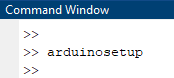
This brings up the hardware setup window. In this project we'll be communicating with the board through WiFi, so we select that option and enter our WiFi name and password:

On the next window, we need to select our board, COM port, and select which libraries we want to be included by default when we create a new Arduino object. In our case, we are using the MKR1000 board and the COM port is the one that automatically appears there. Regarding the libraries, we'll only be needing the MotorCarrier one, so we check that box and click Program to start uploading it to the board:

This will take a few minutes, and when it's done, we'll get a success message. If it fails for some reason, check that the WiFi information on the previous window is right and that the correct board and port were selected.

The next window gives us the data about our connection (IP address, board, port, etc). We then click to check the connection and make sure it's working. If the uploading was successful but you get an error message when testing the connection, it may be because another Arduino connection is already established with Matlab. Clear that connection and try the setup again from the beginning.

On the last window, we uncheck the box since we don't want to see examples, and click to finish the setup:

Wireless communication is now established and we can start to program the robot. We'll write a script divided by sections to perform each of the tasks, starting by creating the device objects for the board, carrier, dc motors, encoders, and servo:

Next, we will turn on the motors for a few seconds to see how the robot moves. The function that we use to set the voltage supplied to the motors accepts inputs in the -1 (full reverse speed) to 1 (full forward speed) range in order to simplify it. If we want to input the actual voltage (vSet), we have to divide that value by the maximum voltage that the battery can supply (vMax), which is 11V.
We chose a voltage value of 3V, turn on the motors for 3 seconds, and then read the encoder pulses.

Let's see how it moves:
Its movement is as expected, so we can assume that the pulley mechanism is working fine. Let's check the encoder counts:


We notice that the right motor turned a bit more than the left one. This is due to the fact that although they are the same motor, they're not perfectly equal, and one can spin more or less when supplied with the same voltage. Another factor that causes this behavior is their position on the board. Since we didn't center the robot horizontally, one of the motors will be closer to its side of the board than the other, which means that the angle formed by the string attached to it will be smaller, resulting in a greater downward gravity force component. Therefore, this particular motor will need more torque to pull its side up, resulting in a smaller speed and displacement. We will cover this better in the next chapter.
The next step is to find the servo positions that correspond to the left, right, and no marker touching the board. We do that by adding a slider and trying different values until we find them:


no marker

left marker

right marker
For us, the left and right servo positions are 0.95 and 0.30 respectively. The range goes from 0 (0°) to 1 (180°). The no marker value is in the middle between these two. We save this data in a file to be used throughout the rest of the project:

Now that we know that the motors, encoders, and servo are working as intended, we'll develop an app to directly control the robot's movement on the board.
3. Designing an app to control the robot
In Matlab, we can design apps for the user to interact with our system in an intuitive way. In this section, we'll develop an app to move the robot by clicking on a controller on the screen. The user will be able to select the speed of each motor through a knob that goes from 0 (0%) to 1 (100%). Below the knobs, there will be two lamps to display the state of the motors. Green means that motor is off, and red means it's on. Here's the interface:

Since in this project we'll be mostly using scripts to perform our tasks, we chose so that the app will get as input arguments the two DC motors. This makes it easy for us to quickly open the app to move the robot on the board in between tasks after we've created the hardware objects. To open it, we call it like a function and pass the arguments. The code below is just an example.

Now let's take a look at the programming. After we add the interface objects (knobs, buttons, etc), we have to write the code of what will happen when the user interacts with it. The ones in this project are very self-explanatory and straightforward, so we won't explain them. Just by reading you will be able to understand what they do. Keep in mind that only the code on the white background is the one we wrote. All the rest is automatically written by Matlab and has to do with the aspect (color, size, positioning, etc) of the interface objects, which we added by drag-and-drop.


Now let's see how we can move the robot on the whiteboard with it:

It works fine but we can't move it diagonally if we want to. Next, we'll create an app to drive it using keyboard keys in order to have more freedom and drive it smoothly in comparison with clicking.
4. Keyboard app
The general aspects of this app are the same as the previous one. Except that now instead of clicking buttons the user can use the W, A, S, and D keys. In addition, the user can use the mark to draw now. The keys Q, E, and C will select the marker using the servo. Here's a basic diagram showing the commands:
MOVEMENT
W
A
S + A
W + A
W + D
D
S + D
S
MARKER
Q - Black
E - Red
C - None
Here's the app interface. As we've said, in addition to the previous interface items, now we've added a lamp to show the color of the current marker.

Here's the code showing the new variables, event handlers, and functions for this app:


Note that we have to pass the motors objects and other relevant data, such as the servo marker positions to the app as input arguments.
Let's see it functioning:

(Note: I've accidentally written "green" where it should be "red" for the right marker's color. That's why it's displaying that color. I've only noticed this after finishing the video.
As you can see, it's quite hard to accurately draw something on the board. This is due to the fact that we're trying to do a quick demonstration here, and therefore are using high motor speeds. When the robot moves fast, it tends to oscillate a little on the board, since the strings are flexible, and that makes it hard to draw straight. However, even if we used lower speeds, which would fix this issue, our drawings would not be very precise. The reason behind this is that as we'll see in the next part of the project, the required torque to move the robot changes depending on its location.
Since here we're supplying the motors with a fixed voltage (that's what the "motor speed" means on our knobs. It's not really the speed, but it's easier for the user to understand it that way) they will spin with different speeds when on different coordinates, so it will never really draw straight lines the way it is right now. To achieve that, we would need a speed controller for the motors, and then based on the robot's current position we would calculate, using the same trigonometric principles, the required speed proportion between them in order for it to move in the direction that we want. This proportion would constantly change as it moves, so we would need to implement a closed-loop control to calculate it at every time sample. Since the goal of the project is to have the robot automatically draw an image, and not draw one ourselves, we won't be developing this right now.
5. Coordinates system and positioning
The coordinates system that we are going to use will be an XY plane with the origin located at the upper left pulley. Therefore, X increases when the robot moves to the right, and Y when it goes down:

X
Y
0
We will calculate its positioning using trigonometry. The X and Y coordinates, together with the string lengths, will form right triangles:
X

Y
dL
Let's see the board without the robot so that we can have a clear view of the full diagram. The robot's position is represented by the black dot.
dWB
dWB - X

dL
dR
X
Y
As you can see, we have two right triangles. Using the Pythagorean theorem, we can write two equations:


By isolating Y on the second equation, and then replacing it in the first one, we can obtain X. With the X value, we can go back to the first equation and obtain Y:


These are the final equations that we will use. The idea is to calculate the robot's new coordinates after moving it from a known initial position. In order to get it, in this case, it's easier to measure the string length on each side of the robot instead of the actual X and Y starting coordinates, which are located in the middle of the whiteboard and are much harder to know accurately. After moving the robot, since we know the number of pulses of the encoders, we can calculate how much string was wound or unwound and finally compute its new coordinates using the equations above.
To begin, we write a function to get the user input on the string lengths and calculate the total starting lengths dL0 and dR0. In order to know the input values, we measure the lengths with a ruler or another similar tool. Note that the distance we measure is the distance from each pulley to the motor shaft. Then, since we know the length of the arm where the motor is attached, we sum it to the measured value to get the final string lengths dL0 and dR0 which go from the pulley to the drawing point. Although it's not necessary, we also calculate the initial X and Y coordinates just to have the values in this form, which is easier to imagine and visualize than string lengths:

Next, we write another function to calculate the new coordinates after driving the robot around. This function takes as input arguments the starting dL0 and dR0 values from the previous function and the number of pulses of each encoder:

The first thing that we do is calculate the number of revolutions performed by each motor. We do that with the encoder pulses data and knowing the gear ratio and encoder pulses per revolution constants. Then, using the definition of arc length and knowing the spool radius, we compute how much string the revolutions wound/unwound. We divide it by two since the strings are doubled, and now we have the real strings lengths. We add it to the initial lengths to have the final new dL and dR values. Finally, using the trigonometric equations we compute the new X and Y coordinates.
The diagram below shows exactly what it is that we're doing:
dWB
dWB - X
dL0
dR0
Y
X
dL0
strL
dR0
strR (negative)
initial position
final position
See that in this example, by adding the unwound left string length strL to the initial length dL0 we get the length on the new position. By subtracting the wound length strR from the initial length dR0 we do the same for the right side. From there we just put these values into the equations and calculate X and Y.
We wrote the following live script in Matlab to perform this task using the previous functions and the keyboard app:

Now let's test it in the real world. We're going to measure the robot's string lengths from the pulleys to the motors shaft and feed them to the startingCoordinates() function. It will calculate the total initial string lengths and also the initial X and Y values. We'll then move it to a new point using one of the apps that we've created, and run the function finalCoordinates() to calculate its new position. Then, we're going to check these new coordinates to see if they are accurate. We've run a total of three tests:
Below you can see pictures for better comparison and the data for each one of them from Matlab's workspace:
TEST 1

14.2 cm
20.3 cm
X
Y

36.7 cm
52.4 cm
X
Y


TEST 2

X
Y
30.5 cm
16.5 cm

Y
X
28.8 cm
51.4 cm


TEST 3

49.6 cm
X
Y
20.3 cm

X
Y
17.1 cm
33.5 cm


The obtained results are accurate to our theory, so we can say that our equations are correct and the system is working as expected.
6. Conclusion
In this section, we introduced the drawing robot, its hardware components, and working mechanisms. We built two apps to drive and draw on the board using a click controller and a keyboard one as well. We've also presented its mathematical model and how we can use it to compute its coordinates at any given time.
The final objective of the project, however, is to have it autonomously draw an image on the board. In order to do so, first, we have to design an algorithm for it to go by itself from one coordinate to the other. Then, by turning an image that we want to draw into a set of waypoints using image processing techniques, we can get the robot to draw it. That's what we're going to do in the next parts. We're also going to analyze the required torque on our motors as they move around the board to see if they are up to the task, and to identify possible areas where we should not go.